Understanding Laser Cut File Formats: SVG, AI, CDR, EPS, and PDF
Learn the differences between SVG, AI, CDR, EPS, and PDF file formats for laser cutting projects, and how to choose the right one for your workflow.
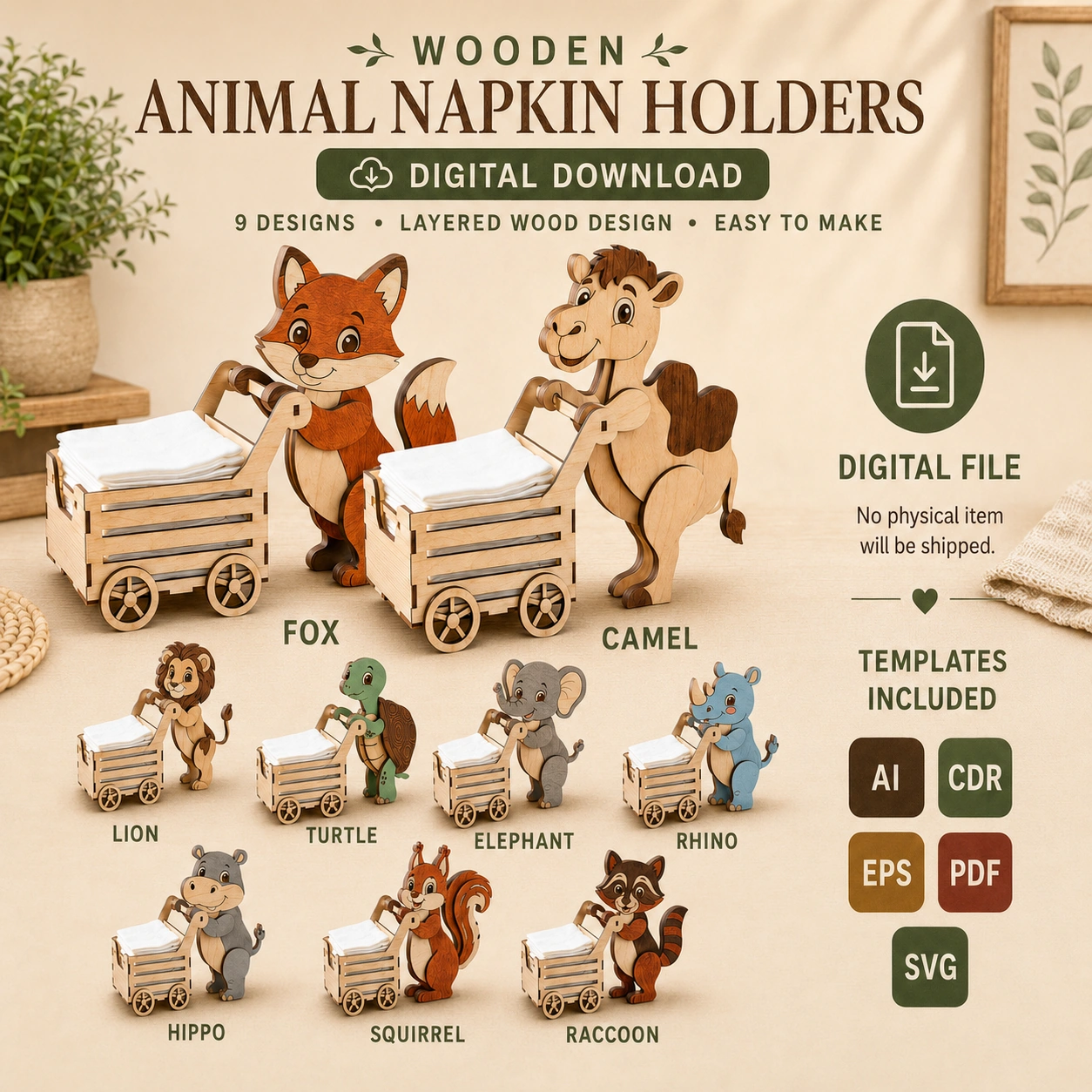
When you download a laser cut file bundle, you often receive multiple file formats. For example, the Animal Napkin Holder SVG Bundle includes SVG, AI, CDR, EPS, and PDF versions of each design. But what do these formats mean, and which one should you use? This article explains the key differences and helps you choose the right format for your laser cutting software and workflow.
SVG: Scalable Vector Graphics
SVG is one of the most widely supported vector formats. It is an open standard developed by the World Wide Web Consortium (W3C), meaning it can be opened in many programs without proprietary licensing. SVG files store vector paths as XML text, making them lightweight and editable. Most laser cutting software, including LightBurn, Glowforge, and xTool Creative Space, can import SVG files directly. If you are unsure which format to use, SVG is often the safest choice because it preserves the original geometry and layers accurately. However, some older or specialized software may not fully support all SVG features, so it is good to have alternatives.
AI: Adobe Illustrator
AI is the native format of Adobe Illustrator, a professional vector graphics editor. AI files can contain multiple artboards, layers, and complex effects. While Illustrator is not free, many laser cutting enthusiasts use it for designing and editing files. AI files can be exported to other formats, but opening an AI file directly in non-Adobe software may cause loss of some features. If you use Illustrator, AI format gives you full editability. For those without Illustrator, it is better to use SVG or PDF.
CDR: CorelDRAW
CDR is the native format of CorelDRAW, another popular vector graphics program. CorelDRAW is common in sign-making and engraving industries. CDR files can include multiple pages, layers, and bitmap effects. If you use CorelDRAW, CDR is your native format. However, like AI, CDR is proprietary and may not open correctly in other software without conversion. Many laser cutting machines support CDR import, but it is always wise to have a fallback format like SVG or PDF.
EPS: Encapsulated PostScript
EPS is an older vector format that is still widely used in print and graphic design. It can contain both vector and bitmap data. EPS files are supported by many vector editors and some laser cutting software. However, EPS is less common in modern laser cutting workflows because SVG and PDF have become more standard. EPS files can be larger and may not handle transparency as well as SVG. If your software supports EPS, it can be a reliable option, but you may need to convert it to another format for editing.
PDF: Portable Document Format
PDF is a universal format that preserves document layout, fonts, and vector graphics. It is widely used for sharing files because it can be viewed on almost any device. For laser cutting, PDF is excellent because it maintains precise vector paths and can include multiple layers. Many laser cutting programs can import PDF files directly. However, not all PDFs are created equal—some may contain raster images or compressed data that is not suitable for laser cutting. When you receive a PDF from a reputable source like LaserNestDesignsArt, it is designed for laser cutting with clean vector lines.
How to Choose the Right Format
Your choice of file format depends on the software you use. If you use LightBurn, SVG or PDF are typically best. For Glowforge, SVG and PDF are also recommended. xTool Creative Space supports SVG, AI, and PDF. If you use Adobe Illustrator, AI is convenient. For CorelDRAW users, CDR is natural. EPS is a good backup if your software supports it. The Animal Napkin Holder SVG Bundle includes all five formats so you can pick the one that works best for your setup. Always check your software’s documentation for supported file types.
Tips for Working with Vector Files
- Keep a backup of the original files in case you need to revert changes.
- Use layers to organize different parts of your design (e.g., cut lines, engrave lines).
- Before cutting, preview the file in your laser software to ensure paths are correct.
- If a file does not open correctly, try a different format from the bundle.
- Avoid scaling vector files in raster programs; use vector editors to maintain precision.
- When working with multiple machine types, test a small test cut using each format to see which imports most reliably into your workflow.
- If you need to share files with others, choose PDF or SVG for the broadest compatibility across devices and programs.
- Label your working files clearly so you know which version you edited and which is the original.
Applying These Formats to the Animal Napkin Holder Bundle
The Animal Napkin Holder SVG Bundle includes nine distinct wooden animal designs: a fox, camel, turtle, lion, elephant, rhino, hippo, squirrel, and raccoon. Each design is provided in all five formats, so you can use the one that fits your laser cutting setup. For example, if you are using a Glowforge, you can import the SVG directly into the Glowforge app and see the cut lines and engrave details exactly as intended. If you prefer to do any custom resizing or layer adjustments in Adobe Illustrator, the AI file gives you a fully editable starting point. CorelDRAW users can open the CDR files and immediately see the organized layers for cutting and engraving. The EPS and PDF options serve as reliable backups if your primary software has trouble with other formats.
No matter which format you choose, the vector paths are clean and scaled for 3 mm plywood, so you can start cutting as soon as you load the file. Because the bundle covers nine animals, you also have plenty of variety to experiment with different wood types, stains, or paint finishes. Switching between the formats within a single project is also simple—you can open the SVG in LightBurn for cutting the fox, then import the PDF into another program to check measurements on the camel, all without losing any design integrity.
Conclusion
Understanding file formats helps you get the most out of your laser cutting projects. Whether you prefer SVG, AI, CDR, EPS, or PDF, having multiple options ensures compatibility with your software and workflow. The Animal Napkin Holder SVG Bundle provides all these formats, so you can focus on creating beautiful wooden napkin holders without worrying about file issues.