Understanding File Formats for Laser-Cut Organizers: SVG, DXF, CDR, EPS, PDF, and STL
Learn the differences between SVG, DXF, CDR, EPS, PDF, and STL file formats for laser-cutting projects like the Rotating Craft Organizer.
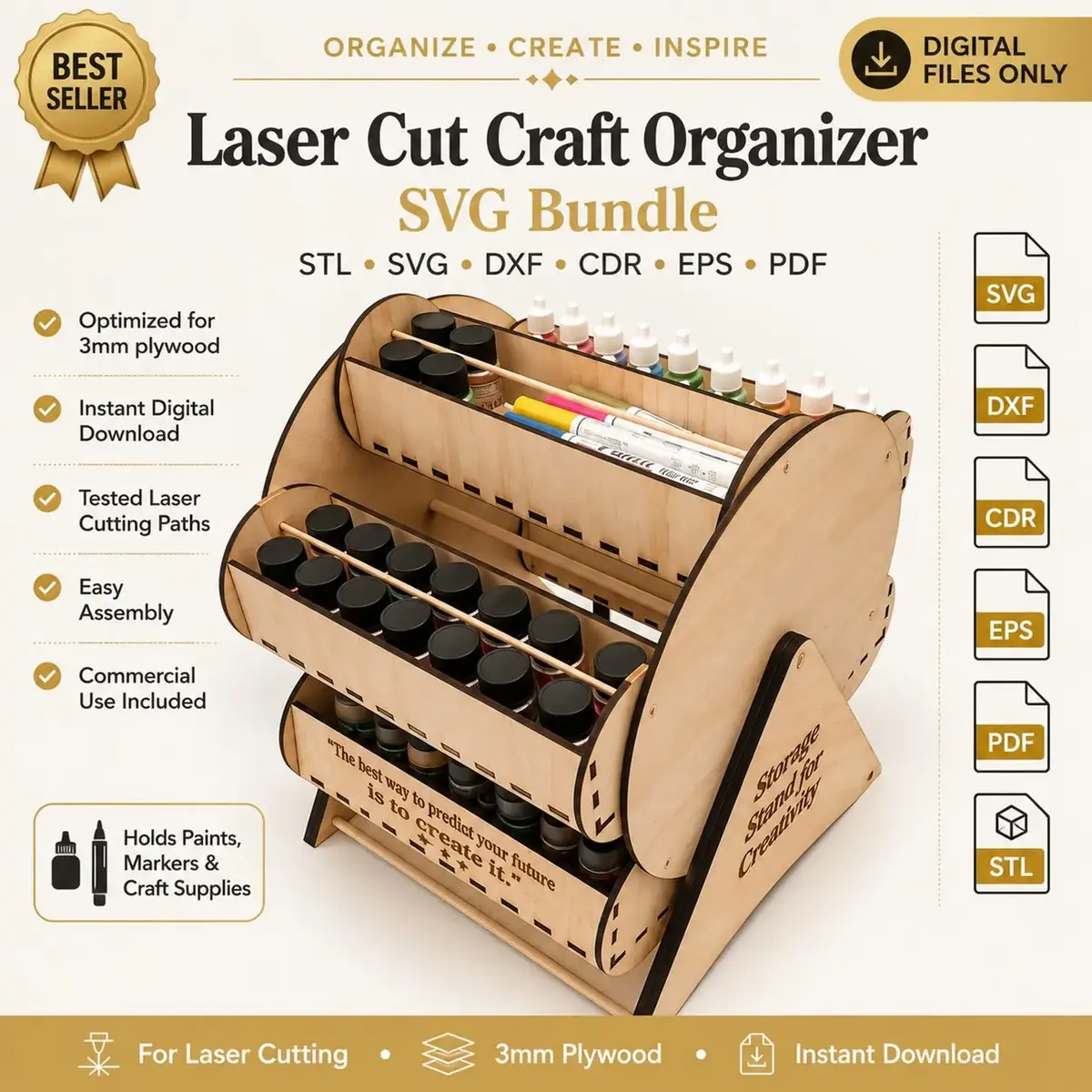
If you’re about to cut a smart storage project like the Rotating Craft Organizer, the file you open matters as much as the material you load. Digital designs for laser cutting often ship in multiple vector and 3D formats, and choosing the right one can make the difference between a smooth workflow and hours of troubleshooting. This guide walks you through the six formats included with the Rotating Craft Organizer—SVG, DXF, CDR, EPS, PDF, and STL—so you can pick the one that fits your software and start cutting with confidence.
Understanding the Six File Formats Included
When you purchase the digital files for the Rotating Craft Organizer, you receive a versatile bundle of six formats. Each serves a specific purpose and works with different software ecosystems. Here’s what to expect from each:
SVG (Scalable Vector Graphics) – A popular format for modern laser software like LightBurn, Glowforge, and xTool Creative Space. SVG files are vector-based and often preserve layer information, making it easy to separate cut, score, and engrave operations. When you open the SVG in your software, check the layer names to see if they indicate the intended action; you can always adjust them to match your machine’s required color mapping.
DXF (Drawing Exchange Format) – Widely used in CAD and CNC workflows, DXF is great if you plan to modify the design in programs like Fusion 360, DraftSight, or even continue editing in Inkscape. The DXF file retains precise dimensions, which helps when you need to tweak slot tolerances or resize parts for different material thicknesses. Import it into LightBurn or RDWorks and assign cut settings per layer.
CDR (CorelDRAW) – If your laser is driven by CorelDRAW (common with Epilog and Trotec), this native format gives you full editing control. Open the CDR file, set hairline outlines for cut lines, and send it to print without worrying about conversion artifacts.
EPS (Encapsulated PostScript) – A reliable vector format that can be opened in Adobe Illustrator, Inkscape, CorelDRAW, and many other graphic tools. Use the EPS if your workflow centers on Illustrator or if you need to combine the design with other artwork. From Illustrator, you can re-save as AI or SVG for direct laser import.
PDF (Portable Document Format) – While primarily a document format, the PDF in your bundle retains vector information. It’s perfect for quick previews, printing templates, or sharing with collaborators. Some laser software can import PDF vectors, but if not, open it in Inkscape or Illustrator and export as SVG or DXF.
STL (Stereolithography) – The STL is provided for any 3D-printable components you might want to substitute, such as a pivot hub or decorative knobs. For pure laser cutting, focus on the other five formats; the STL is best sent to a resin or filament printer.
Preparing Your File for Laser Cutting
Before sending the design to your laser, take a few moments to check and assign the correct operations in your software. The Rotating Craft Organizer digital files are delivered with the expectation that you’ll adjust parameters for your specific machine and material.
Start by opening your chosen format in the appropriate software. For example, in LightBurn, import the SVG or DXF. Verify that the imported dimensions match your material thickness—most craft plywood and acrylic sheets are close to the nominal size, but always measure your stock with calipers. If the design includes interlocking tabs, a quick test cut of a small section can save a full sheet from misalignment.
In your software’s layer or color palette, assign operations: you might set red paths to cut, blue to score, and disable any guide lines. But the color scheme may vary, so refer to the included notes or preview the geometry to decide. Run a power and speed test on your material before committing the full job. This is especially important for intricate cuts—adjust until the laser cuts cleanly through without excessive burning. Arrange the pieces on your workspace to make efficient use of material; you can rotate and nest parts to fit your bed size and reduce scrap.
Recommended Software Workflows
Different laser brands often pair with particular software, and the included formats cover the most common combos.
LightBurn + SVG or DXF – For diode lasers like the xTool D1 or CO2 machines supported by LightBurn, SVG or DXF make setup effortless. LightBurn reads the vector data immediately, preserving layer names and colors. Assign speed and power per layer and start cutting within minutes.
Glowforge App + SVG – Glowforge’s cloud-based software accepts uploaded SVGs. Import the file, confirm the material thickness, and the app separates cut, score, and engrave automatically. Use the PDF as a visual reference, since Glowforge uses black for cuts and blue for scores rather than any original color scheme.
CorelDRAW + CDR – For lasers driven by CorelDRAW (Epilog, Trotec, and others), the CDR file gives full editing control without conversion issues. Set hairline cut lines and send the job directly through the print dialog.
Adobe Illustrator + EPS – If your shop standardizes on Illustrator, import the EPS, then re‑save as AI or SVG for your laser. Keep the vector paths intact to avoid shifting joint tolerances.
No single format locks you in. The bundle ensures you can open the Rotating Craft Organizer on your preferred tool without messy conversions.
Bring Organization to Your Studio
The Rotating Craft Organizer is a practical project that tames paint bottles and small supplies. With six file formats at your fingertips, you skip the frustration of incompatible vectors and dive straight into making. Whether you’re running a Glowforge, an xTool, an Epilog, or a home-built LaserGRBL setup, the right format is right there.
Grab the digital files from our Etsy shop, choose the format that fits your workflow, and transform a few sheets of material into a rotating storage solution that looks as good as it works. Your creative studio deserves this tidy upgrade.