Understanding Laser Cut File Formats: SVG, AI, CDR, EPS, and PDF
Learn the differences between SVG, AI, CDR, EPS, and PDF for laser cutting. This guide helps makers choose the right format for their workflow.
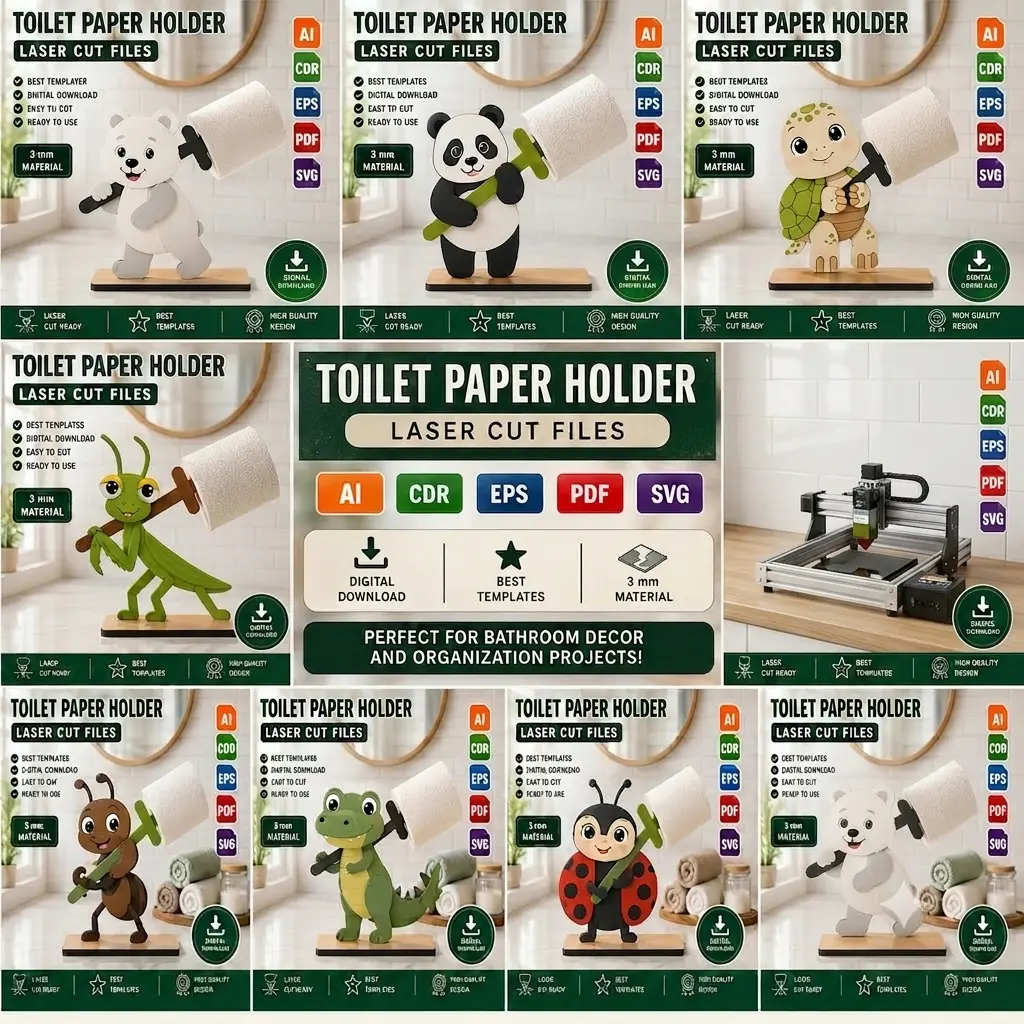
When you download a laser cut file bundle, you often see a list of formats like SVG, AI, CDR, EPS, and PDF. Each format serves a similar purpose—storing vector geometry—but they differ in how they handle layers, colors, and compatibility with different software. Understanding these differences helps you choose the right file for your workflow, whether you use LightBurn, Adobe Illustrator, CorelDRAW, or another vector editor.
This guide explains the five common vector formats supplied with many laser cut design bundles, including the Animal Toilet Roll Holder Bundle. We’ll cover what each format is best for, how to open it, and tips for preparing your file for cutting.
SVG (Scalable Vector Graphics)
SVG is one of the most widely supported vector formats. It is an open standard developed by the World Wide Web Consortium (W3C), meaning it can be opened in almost any vector editing software, including free options like Inkscape and web-based tools. SVG files store paths, shapes, and colors as XML text, making them lightweight and easy to edit.
For laser cutting, SVG is a great choice because it preserves layer colors and stroke widths. Many laser control programs, such as LightBurn, import SVG files directly and recognize color-coded layers for cut, engrave, and score actions. If you are using a Glowforge or xTool machine, SVG is often the recommended format.
When opening an SVG file, you may need to adjust the document size to match your material. Some SVG files include a bounding box that can be resized without distorting the design. Always check that the scale is correct before sending to the laser.
AI (Adobe Illustrator)
AI is the native format for Adobe Illustrator, a professional vector design application. AI files can contain multiple artboards, layers, and complex effects. They are ideal if you use Illustrator as your primary design tool, because you can directly edit paths, colors, and text without conversion.
However, AI files are not as universally compatible as SVG. If you do not own Illustrator, you may need to convert the AI file to another format. Some free programs can open AI files, but they may not preserve all features. For laser cutting, it is common to export from AI to SVG or DXF for use in other software.
If you receive an AI file, you can open it in Illustrator and check that all strokes are converted to paths (outlined) to avoid font issues. Then save a copy as SVG or PDF for your laser software.
CDR (CorelDRAW)
CDR is the native format for CorelDRAW, another popular vector design application. It is widely used in the sign-making and engraving industries. CDR files support layers, color palettes, and bitmap effects.
If you use CorelDRAW, CDR is a convenient format because you can edit the design directly. Many laser machines, especially those from Chinese manufacturers, include CorelDRAW plugins for direct output. However, CDR files are less common in the broader maker community, so you may need to export to SVG or PDF for sharing or for use in other software.
When working with CDR files, ensure that all text is converted to curves (outlined) and that line thicknesses are set appropriately for laser cutting (typically hairline for cut lines).
EPS (Encapsulated PostScript)
EPS is an older vector format that was once the standard for print publishing. It can contain vector graphics, bitmaps, and text. EPS files are supported by many vector editors, including Illustrator, CorelDRAW, and Inkscape.
For laser cutting, EPS is less common today but still useful for compatibility with legacy software or specific workflows. EPS files often need to be imported and then exported to a more modern format like SVG. Some laser software can import EPS directly, but it is wise to test a small file first.
One advantage of EPS is that it can embed fonts, but this can also cause issues if the font is not installed on your system. To avoid problems, convert text to outlines before saving or importing.
PDF (Portable Document Format)
PDF is a universal format that preserves layout, fonts, and vector graphics. It is widely used for sharing documents, but it is also an excellent format for laser cutting because many laser control programs can import PDF files directly.
PDF files can contain multiple pages, which is useful for designs with several parts. They also support layers (in PDF 1.5 and later), though not all laser software recognizes PDF layers. For best results, flatten the design to a single layer or use color coding for cut/engrave lines.
When preparing a PDF for laser cutting, ensure that all lines are vector paths and that the page size matches your material dimensions. Some PDFs may include raster images that are not suitable for cutting; these should be removed or converted to vectors.
Choosing the Right Format for Your Workflow
The best format depends on the software you use and your machine’s requirements. Here are some general guidelines:
- LightBurn users: SVG is the most straightforward format. LightBurn imports SVG layers and colors, making it easy to assign cut/engrave actions.
- Adobe Illustrator users: AI is ideal for editing, but export to SVG or PDF for your laser software.
- CorelDRAW users: CDR is convenient, but export to SVG or PDF for broader compatibility.
- Inkscape users: SVG is native and works perfectly.
- Glowforge users: SVG or PDF are recommended. Glowforge’s interface handles both well.
- xTool users: SVG or DXF are common; check your machine’s manual for preferred formats.
If you are unsure, start with SVG. It is the most universally supported format and works with almost every laser cutting workflow. The Animal Toilet Roll Holder Bundle includes SVG, AI, CDR, EPS, and PDF, so you can choose the format that fits your tools.
Tips for Preparing Vector Files for Laser Cutting
Regardless of format, follow these best practices to ensure a smooth cutting experience:
- Check scale: Verify that the design dimensions match your material size. Resize if necessary, but maintain proportions.
- Convert text to outlines: This prevents font substitution issues. In most software, select the text and choose “Create Outlines” or “Convert to Paths.”
- Set stroke properties: Cut lines should be hairline and colored red or black. Engrave lines can be thicker or filled.
- Remove duplicates: Delete overlapping or duplicate paths to reduce cutting time.
- Test on scrap material: Always run a test cut on a small piece of the same material to verify settings.
Conclusion
Understanding file formats helps you get the most out of your laser cut designs. SVG, AI, CDR, EPS, and PDF each have strengths, and the right choice depends on your software and machine. By knowing how to open, edit, and prepare these files, you can avoid common pitfalls and achieve clean, accurate cuts.
Next time you download a bundle like the Animal Toilet Roll Holder, you’ll know exactly which format to use and how to get started. Happy making!